In a query based report, the DBFields or database fields refer to fields directly from databases, user data sources, hierarchical data sources, or other data sources; in a business view based report, they are the group and details objects in the business view.
DBFields in a report can be used as the trigger object of links, and you can change their display types if you want.
See an example: The SampleComponents catalog, included with JReport Designer, contains reports that have examples of how each component type could be used in a report. For the DBField component example, open <install_root>\Demo\Reports\SampleComponents\ForDBField.cls.
For a business view based report
Select the group or detail object in the Data panel and drag it to the destination.
For a query based report
You have two ways to insert a DBField into a query based report.
By dragging and dropping
Select a dataset from the dataset drop-down list in the Data panel, then select the required DBField and drag it to the destination.
Using dialog
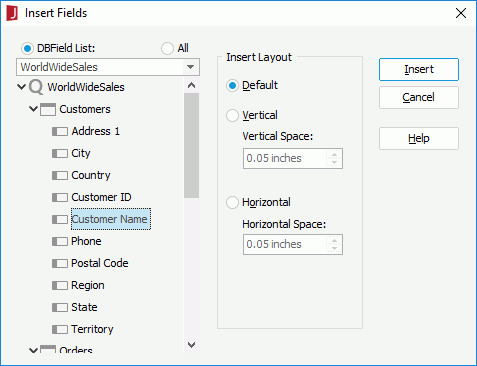
Position the mouse pointer at the destination where you want to insert the DBField and click Insert > DBField or Home > Insert > DBField.
Select a dataset from the dataset drop-down list, and all resources in the selected dataset will then be listed in the DBField List box.
Select the required DBField and specify its layout in the Insert Layout box. You can select them one by one with the Ctrl key, or you can make a continuous selection with the Shift key.
Click the Insert button to insert the DBField into the destination.
Notes:
You cannot use the Insert Fields dialog to insert a DBField into a crosstab.
If you insert a DBField into the detail panel of a banded object or table, the name of the DBField will automatically be inserted as a label into the corresponding header panel. Otherwise the field and its name label will be placed in the same panel. If you do not want to insert the field name automatically, you can uncheck Insert field name label with field in the Options dialog (File > Options > Component > Insert field name label with field).
Adding summaries for DBFields
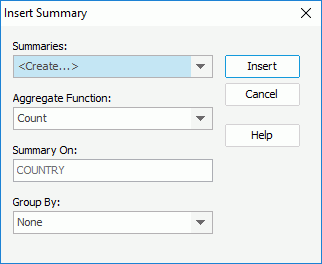
In a query based page report, you can add summaries for DBFields as follows:
Select a DBField, then do one of the following:
Click Insert > Summary.
Right-click the DBField and select Summary Function from the shortcut menu.
From the Aggregate Function drop-down list, specify the function of the summary.
If the report is grouped, select to which group level the summary will be applied from the Group By drop-down list. If None is select, the summary will be added based on the whole report.
Click the Insert button.
A summary with the default name Function_DBFieldName is then created in the current catalog and is available under the Summaries node in the Data panel. You can drag it to use in the report.
Adding conditional formats to DBFields
You can add conditional formats to DBFields in a report, then when a specified condition is fulfilled, the format defined on the condition will be applied to the field values automatically. This is very useful to highlight values that might need to be acted on by end users.
To add conditional formats to a DBField:
Select the DBField and then do one of the following:
Click the Conditional Formatting button on the Format tab.
Right-click the DBField and select Conditional Formatting from the shortcut menu.
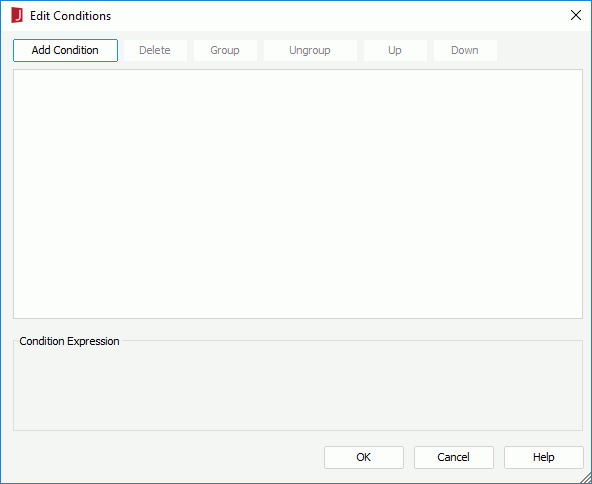
Click above the Condition box. The Edit Conditions dialog appears.
Click the Add Condition button to add a condition line.
From the field drop-down list, select the field on which the condition will be based. You can also select the special field User Name or Page Number to compose the condition. If Page Number is selected, the format will be applied to the field values on the pages meet the condition at runtime.
Choose the operator with which to compose the condition expression from the operator drop-down list.
From the value drop-down list, specify the value of how to build the condition. You can also type in the value manually. When you are adding conditional formats to a DBField in a crosstab, you can also click the button and then select a dynamic value from the drop-down list. The dynamic values available on the drop-down list contain the following of the same data type as the field on which the condition is based:
Crosstab formulas if the crosstab was created based on a query resource
Dynamic formulas/aggregations and custom aggregations if the crosstab was created based on a business view
Click Add Condition to add more condition lines and define the logic between the condition lines.
To make some condition lines grouped, select them and click the Group button, then the selected condition lines will be added in one group and work as one line of filter expression. Conditions and groups together can be further grouped. To take any condition or group in a group out, select it and click Ungroup.
To adjust the priority of the condition lines, select it and click the Up or Down button.
To delete a condition line, select it and click the Delete button.
Click OK to save the condition.
The newly added condition is then displayed and highlighted in the Condition box in the Conditional Formatting dialog.
In the Format box, set the format which will be applied to values of the DBField when the specified condition is fulfilled, such as the font face, font size, font color and so on. Check Blinking Text if you want to make the values blink, then in the Duration text box, set how long it takes the values to complete the transition from the foreground color to the transparent color, in seconds. The blink settings can work in Designer view mode, in the HTML result of the report and at server runtime.
Repeat the above steps to add more conditions and define the format for each condition.
To edit a condition, select the condition from the Condition box, click , then edit the condition in the Edit Conditions dialog.
To adjust the priority of the conditions, select a condition and click the High or Low button.
To remove a condition and the corresponding format, select the condition from the Condition box and then click .
Click OK to save the settings.
Note: To make the blink settings of a conditional format take effect in HTML report result or at server runtime, you need to make sure the web browser you use supports CSS3 animation, such as Firefox, Safari, Chrome and Internet Explorer 10 or above.
Searching for DBFields in a report
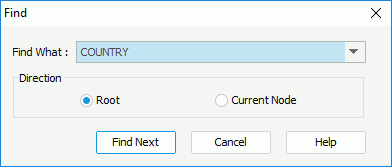
When a report has many DBFields, you may find it difficult to locate where a certain field is. To easily find out the field you have lost track of in your report, you can make use of the Find DBField feature.
Select the field you want to locate from the Find What drop-down list.
Tip: Besides DBFields, formula fields used in the report will also be listed in the Find What drop-down list, so you can also use this dialog to locate a formula in a report.
Specifies the criteria with which to find the field.
Root
Searches for the field from the top node.
Current Node
Searches for the field from the current node.
Click the Find Next button and the specified field will be selected in the report.
 Previous Page Next Page
 on the Format tab.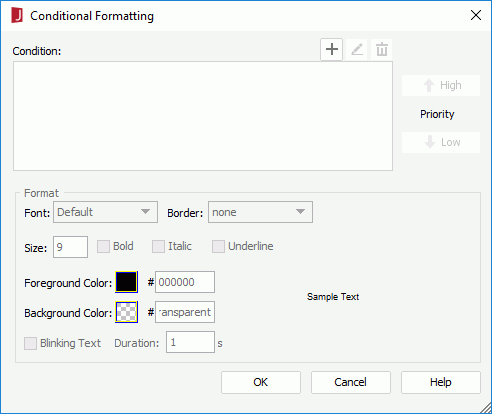
 above the Condition box. The Edit Conditions dialog appears.
 and then select a dynamic value from the drop-down list. The dynamic values available on the drop-down list contain the following of the same data type as the field on which the condition is based:
 , then edit the condition in the Edit Conditions dialog.
 .
.