 Previous Page Next Page
A parameter in JReport is a variable whose value is determined at runtime. The runtime parameters help you dynamically control your report results.
Parameter fields in a report can be used as the trigger object of links, and you can change their display types if you want.
See an example: The SampleComponents catalog, included with JReport Designer, contains reports that have examples of how each component type could be used in a report. For the parameter field examples, open the following reports: <install_root>\Demo\Reports\SampleComponents\Parameter.cls, and <install_root>\Demo\Reports\SampleComponents\ParameterField.cls.
Parameter fields can be inserted in the report areas listed in Component placement.
To insert a parameter field into a report, select the required parameter from the Data panel, then drag it to the destination. If the given parameters are not what your want, click the <New Parameter...> item to create one as required. For a business view based report, you can create local parameters to use in the report specifically.
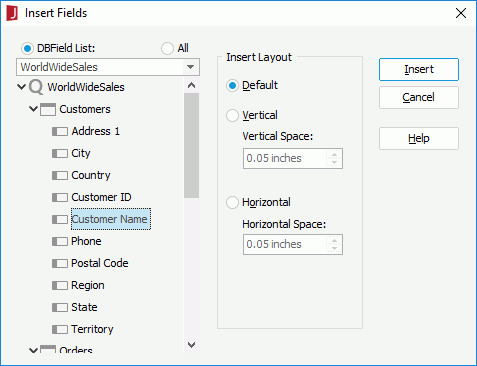
For a page report created using a query resource, you can also use dialog to insert a parameter field into it as follows:
The Insert Fields dialog appears.
Note: If you insert a parameter into the detail panel of a banded object or table, the name of the parameter will automatically be inserted as a label into the corresponding header panel. Otherwise the parameter and its name label will be placed in the same panel. If you do not want to insert the name label automatically, you can uncheck Insert field name label with field in the Options dialog (File > Options > Component > Insert field name label with field).
You can add conditional formats to parameter fields in a report, then when a specified condition is fulfilled, the format defined on the condition will be applied to the field values automatically. This is very useful to highlight values that might need to be acted on by end users.
To add conditional format to a parameter field, right-click it and select Conditional Formatting from the shortcut menu, then take the same procedure as described in Adding conditional formats to DBFields.