 Previous Page Next Page
A label is an object that contains a string. It is typically a brief description used to identify a field or other value nearby.
Labels in a report can be used as the trigger object of links, and you can change their display types if you want.
Labels can be inserted in the report areas listed in Component placement.
To insert a label in a report:
 from the Components panel to the desired report destination.
 A label with the default text "Label" is inserted. You can then edit the text of a label as follow:
You can also modify a label's text by using the Text property value in the Report Inspector.
You can format the label text with the Format manu tab of the JReport Designer main window, for example, you can change the font size, color, and alignment of the text.
To format a label, first select the label, and then perform any of the following tasks:
 , Left
  , Center
  or Right
  . The text in the label will then be aligned according to your selection.
 and then select the required font from the drop-down list. The fonts introduced with * are True Type Fonts. Refer to the chapter True Type Fonts for more information.
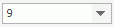 and then select the required size from the drop-down list (or enter the required value in the text box and then press Enter).
 , Italic
  and Underline
  .
. ; to change the foreground color of the label text, click the Foreground Color button
  .
.Note: You cannot use drag and drop or the Insert menu to insert labels into charts. For details about chart labels, see the chart topic Formatting the Labels.
See an example: The SampleComponents catalog, included with JReport Designer, contains reports that have examples of how each component type could be used in a report. For the label component example, open <install_root>\Demo\Reports\SampleComponents\ForLabel.cls.