 Previous Page Next Page
Creating and using dynamic formulas
Creating and using user defined functions
When working with reports that are created using business views, sometimes you may find the predefined view elements in the business views the reports use, or the predefined parameters in the current catalog cannot meet your requirements. In this case, you can create dynamic resources (including formulas and aggregations) and local parameters and use them in the reports to get the desired data. Then when you save the reports, the dynamic resources and local parameters will be saved along with the reports as their resources in the report files.
Dynamic resources and local parameters are report level resources, which means they are only available to the report for which they are created. Unless you need to use the formulas, aggregations or parameters in multiple reports, it is always better to create dynamic resources and local parameters rather than create them in the catalog.
To create a dynamic formula:
Whether a dynamic formula can be used as a certain type depends on the following rules:
@"Sum_Total" / @"Sum_Quantity" and use it as an aggregation. Once a dynamic formula is created, you can then drag it from the Data panel to the desired position in the report, or add it as report field when working with the report wizard.
In the Data panel, you can make use of the shortcut menu of any existing dynamic formula to edit or delete the formula, or change the formula type as Group, Detail, or Aggregation if needed. Dynamic formulas that have been used in the report cannot be deleted.
When existing functions do not satisfy your requirements, you can create user defined functions in the report to use in dynamic formulas. User defined functions can call other user defined functions.
To create a user defined function in a report:
Once a user defined function is created, it will be available under the User Defined Functions node in the Functions panel of the Formula Editor and User Defined Function Editor. You can then call it in a dynamic formula or another user defined function by double-clicking it.
In the case a user defined function named function1 is arguments: integer age, string name;, you can call it as follows:
@function1(25, "John Smith"); @'function1'(25, "John Smith");@"function1"(25, "John Smith");If you want to further edit an existing user defined function or remove any that is not required, right-click the function in the Data panel of the main window and then click the corresponding command on the shortcut menu. Functions that have been used in the report cannot be deleted.
To creating a dynamic aggregation:
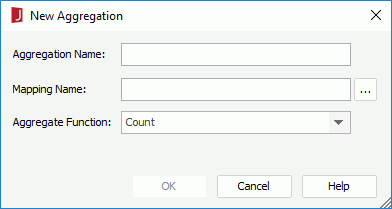
 next to the Mapping Name text box to specify the field on which the dynamic aggregation is based.
You can map dynamic aggregations to the available resources such as group objects and detail objects in the current business view, or the dynamic formulas that have been created in a web report.
Once a dynamic aggregation is created, you can then drag it from the Data panel to the desired position in the report, or add it as report field when working with the report wizard.
In the Data panel, you can make use of the shortcut menu of any existing dynamic aggregation to edit it in the Edit Aggregation dialog or delete it. Dynamic aggregations that have been used in the report cannot be deleted.
Once a local parameter is created, you can then use it to dynamically filter data of the data component in the report, add it to a parameter control or parameter form control in the report, or reference it in a dynamic record level pass one formula used in the report.
In the Data panel, you can also make use of the shortcut menu of any existing local parameter to edit or delete it. Local parameters that have been used in the report cannot be deleted.
Notes:
"~", "`", "!", "@", "#", "$", "%", "^", "&", "*", "(", ")", "-", "+", "=", "{", "}", "[", "]", "|", "\\", ":", ";", "\", " ' ", "<", ",", ">", ".", "?", "/"
Examples: