 Previous Page Next Page
When the built-in functions do not satisfy your requirements, you can design your own formula functions. There are two types of functions in JReport. One are user defined functions that are created using the User Defined Function Editor. The other are imported UDFs that are imported from Java files. Both types can be called in JReport formulas and user defined functions.
You can predefine user defined functions in a catalog.

The function syntax is as follows:
arguments: VariableType1 VariableName1, VariableType2 VariableName2, ...;
For example, arguments: integer age, string name;
An argument works the same as a local variable except that it is not allowed to assign any value to it, like arguments: integer age=10;. You can refer to Formula Syntax for more syntax.
 on the toolbar. If you want to bookmark a line so that it can be searched easily later, click the Add Bookmark button
  . To check whether or not the syntax of your function is correct, click the Check button
  .
.
Notes:
"~", "`", "!", "@", "#", "$", "%", "^", "&", "*", "(", ")", "-", "+", "=", "{", "}", "[", "]", "|", "\\", ":", ";", "\", " ' ", "<", ",", ">", ".", "?", "/"
Examples:
Besides predefining functions in a catalog via the Catalog Manager, JReport Designer also provides you quick access to create user defined functions from the UI where a formula list is available, for example in a business view resource list. Click <New Function…> under the User Defined Functions node where a formula list is provided, and then you can create any functions you want with the User Defined Function Editor.
To import a UDF, you need first develop a Java file to implement a function, and then import it as a class. The following data types can be used for interacting with JReport products (pass parameters and return parameters): DbBigInt, DbDouble, fCurrency, DbBit (using for boolean type), DbChar (using for String), DbDate, DbTime, DbTimestamp, DbBinary, fText (using for Long VarChar), fImage (using for long VarBinary), fIntArray, fNumArray, fCurArray, fBoolArray, fStrArray, fDateArray, fTimeArray, fDateTimeArray, fBinaryArray, fTextArray, fImageArray, fIntRange, fNumRange, fCurRange, fBoolRange, fStrRange, fDateRange, fTimeRange, fDateTimeRange. All the data types that start with 'f' belong to the package jet.formula.*. The other data types belong to the package jet.connect.*. For details, refer to JReport Javadoc jet.formula and jet.connect packages in <install_root>\help\api.
<install_root>\bin on both JReport Designer and JReport Server.import instName from "ClassName";
Where,
For example, the following declaration assumes the class MyFunctions is in package jet.formula.javaformula:
import myfunc from "MyFunctions";
And the following declaration allows user defined UDF class in any package, supposing the class is com.mycom.MyFunctions:
import myfunc from "com.mycom.MyFunctions";
Notes:
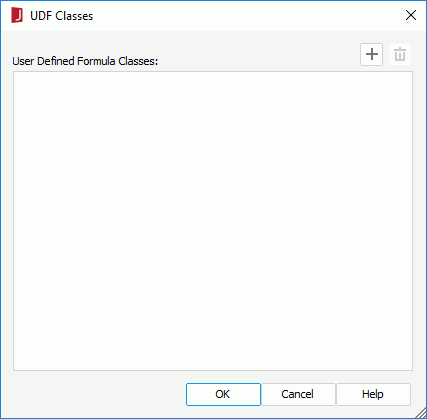
 , then in the Import UDF Class dialog, input the class name with full package path and click OK.
In the Functions panel of the Formula Editor and User Defined Function Editor, you can find user defined functions under the User Defined Functions node and imported UDFs under the UDF node. You can then call the functions in a formula or user defined function by double-clicking them.
In the case a user defined function named function1 is arguments: integer age, string name;, you can call it as follows:
@function1(25, "John Smith"); @'function1'(25, "John Smith");@"function1"(25, "John Smith");For imported UDFs, you can also call them using the following statement:
instName.MethodName(parameters);
Where, MethodName is the method name in your class. You can call methods in your class as many times as you want by loading this class only once.
The following shows an example. function2 calls a UDF:
Import a from jet.formula.javaformula.UDF;
arguments: string countries;
return a.getvalue(@country, @amount, countries);
Then formula1 calls function2:
@function2("USA, China")
You can view the formula references of an imported UDF in the Formula Editor. Select the function and click Menu > Formula > Formula References on the toolbar, or right-click the function and click Formula References on the shortcut menu, then the UDF References dialog will be displayed, showing all the formulas that reference the imported UDF if there are.
In this example, a demo Java program MyFunctions.java which is put in the package jet.formula.javaformula will be used to illustrate how to write record data to a file using UDF functions. You can get the Java source file from <install_root>\help\samples\APIUDFormula\jet\formula\javaformula.
Take the following steps:
javac -classpath "<install_root>\lib\JREngine.jar;<install_root>\lib\report.jar;" MyFunctions.java
<install_root>\bin.
When you add class path, just add the root path. For example, suppose that the class file is located in C:\JReport\Designer\help\samples\APIUDFormula\jet\formula\javaformula, you can append C:\JReport\Designer\help\samples\APIUDFormula into the ADDCLASSPATH variable in the batch file.
pagenumber;

    import myfunc from "MyFunctions";

    global integer filehandle = myfunc.openfile("e:\\test\\data.txt", false);
Note: If the class file is in your own package com.mycom other than jet.formula.javaformula, import the class in a formula as follows:
import myfunc from "com.mycom.MyFunctions";
string contents ="";

    contents = @"Customer Name"+"\t"+ @Country+"\t"+ @Phone + "\t"+ PageNumber + "\n";

    myfunc.write(filehandle, contents);
The return value of the last statement is the formula result.
PageNumber;

    myfunc.closefile(filehandle);
If the statement PageNumber is added to the formula, the formula will be calculated after the page break, which means that the calculation point is controlled. For more information, see Formula Levels.
Note: Now in JReport, the '8859-1' encoding is not required anymore and the UDF functions you define should be able to return the correct unicode strings. Thus, if you have UDF functions created in previous JReport versions which still return '8859-1' encoded strings, you may need to modify them to make them return unicode strings.