 Previous Page Next Page
By default, when you run a report, JReport Engine fetches data from the database using the JDBC driver. For reports that are built on queries (and also business views, imported SQL files, stored procedures and user defined data sources), JReport Designer enables you to create cached result files and save them somewhere in your machine. Then, when you view these reports, you can choose to use the data from the cached query result file as opposed to the database. This is very useful for working on the design of a report while you are off-line and do not have a DBMS connection. Also, it is helpful when you have problems with your reports and need to send the reports with data resources to Logi Analytics for reproducing the problems.
JReport Designer provides you with two ways to create cached query results, the first is with the Catalog Manager and the second is with the Data panel.
To make a library component or a page report created using query resources run using cached query result, you can set the Data Driver property on the dataset appropriately in the Report Inspector. You can specify the property value by inputting manually or selecting a predefined data source driver from the drop-down list.
The input format is as follows: jrquery:/jet.universe.resultfile.UResultFileResultSet;Fullpath_of_cached_query_result
For example, if the cached query result has been saved to C:\JReport\Designer\Cached with the file name test, the property value should be jrquery:/jet.universe.resultfile.UResultFileResultSet;C:\JReport\Designer\Cached\test.
However, the Data Driver property is not available to web reports or page reports that are created based on business views. In order to apply cached query result to them, you can check the option Use cached query result in the Catalog category of the Options dialog. Then whenever you view a report in JReport Designer, a dialog will prompt you to choose a cached query result to run the report.
When specifying the Data Driver property for a dataset, you may find it inconvenient to input a property value that is long and complicated. To help you with this, JReport Designer provides a tool for generating data source drivers for cached query results. Then the generated drivers will be available on the Data Driver drop-down list for selection.
Assume that a cached query result file orderstat_cached has been created for the query OrderStat in the catalog file SampleReports.cat and saved in C:\JReport\Designer\Cached. To create a data source driver for the cached query result, follow the steps below:
<install_root>\Demo\Reports\SampleReports.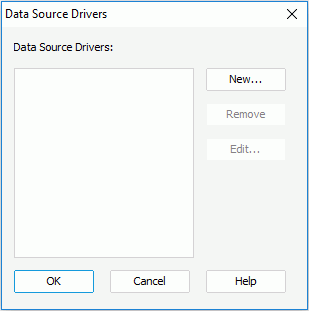
All the added drivers will be listed in the Data Source Drivers box. If you want to remove a driver, select the driver and click the Remove button. To edit a driver, select the driver and click the Edit button.
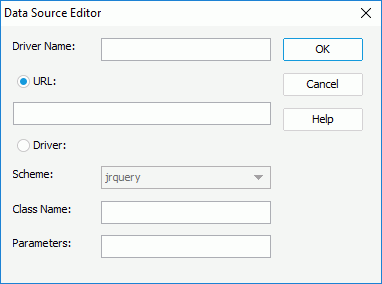
jrquery:/jet.universe.resultfile.UResultFileResultSet;Fullpath_of_cached_query_result
In the example, the URL is jrquery:/jet.universe.resultfile.UResultFileResultSet;C:\JReport\Designer\Cached\orderstat_cached
C:\JReport\Designer\Cached\orderstat_cached in this example)Then, a URL will be generated according to your input information.