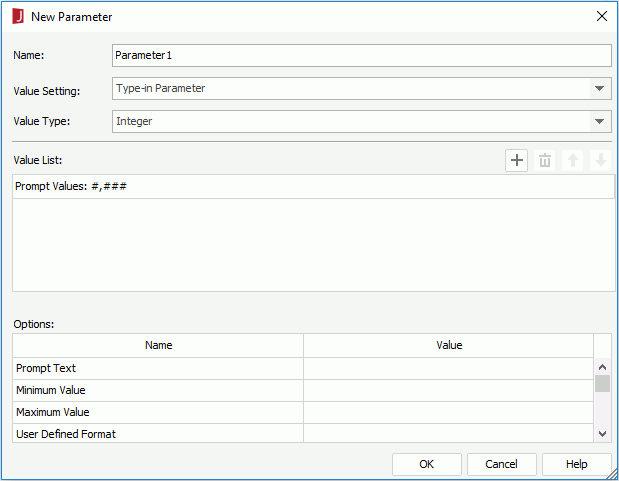
This dialog helps you to create parameters in the current catalog, or create local parameters to use in the current report. It appears when you do one of the following:
Right-click the Parameters node in the Catalog Manager and select New Parameter from the shortcut menu.
Click the <New Parameter…> item where a parameter list is provided.
The following are details about options in the dialog.
Name
Specifies the name of the parameter.
Value Setting
Specifies the parameter type.
Type-in Parameter
Using this type you can predefine parameter values by typing manually.
Bind with Single Column
Using this type the parameter can be bound with a DBField. The values of the DBField will be retrieved as the parameter values.
Bind with Cascading Columns
Using this type you can create a group of cascading parameters so as to achieve the function of filtering parameters with parameters in a simple way. Not available when the parameter is in a catalog data source that contains only XML connections.
Value Type
Specifies the data type of the parameter.
Value
The section after Value Type varies with the type you select from the Value Setting drop-down list.
For Type-in Parameter
Value List
Lists the predefined parameter values.
Prompt Values [format hint]
Predefines the parameter values. The [format hint] shows what the predefined values should look like.
There can be more than one prompt value. All the prompt values must be of the same type as specified in the Value Type field.
Adds a new prompt value to the list. Double-click in the value line to edit the value. If the parameter is of Date, DateTime, or Time type, you can also click the calendar button to set a date and time value in the calendar dialog.
Removes the selected prompt value.
Adjusts the display sequence of selected value by moving it up a step.
Adjusts the display sequence of selected value by moving it down a step.
For Bind with Single Column
Source
Specifies the source type from which to retrieve the DBFields which can be used to bind with the parameter. The available source types are: Tables and Views (including synonyms), Stored Procedures, Imported SQLs, and User Defined. However, when the parameter is in a catalog data source that contains only MongoDB connections, only Tables and User Defined are available in the Source drop-down list.
Bind Column
Specifies the DBField to be bound with the parameter.
Display Column
Specifies the DBField the values of which will be displayed for specifying the parameter value at runtime.
For Bind with Cascading Columns
Data Source
Specifies the data source from which to retrieve the columns which can be used to bind with the parameters. The available data sources are tables, views, synonyms, stored procedures, imported SQLs, and user defined data sources in the same catalog data source as the parameter. However, when the parameter is in a catalog data source that contains only MongoDB connections, only tables and user defined data sources are available.
Value List
Defines a group of cascading parameters.
Adds a new parameter.
Removes the selected parameter.
Adjusts the parameter level by moving it up a step. The higher the position is, the higher the level is. The lower level field values are controlled by the higher level field values.
Adjusts the parameter level by moving it down a step.
Bind Column
Specifies the DBField to be bound with the parameter.
Display Column
Specifies the DBField the values of which will be displayed for specifying the parameter value at runtime.
Parameter
Specifies whether to set a group of Bind Column and Display Column as a parameter which will become a member of the cascading parameter group. All parameters in the cascading group will be created as independent parameters.
The parameter name is provided by JReport automatically, and the format is [The name specified as parameter name]-[Bind Column name].
 Previous Page Next Page

 to set a date and time value in the calendar dialog.

