 Previous Page Next Page
This dialog appears when you double-click a target label on a gauge chart, or right-click it and then select Format Target Label from the shortcut menu. It enables you to format the target labels.
The dialog contains the following tabs: General, Font and Format.
OK
Applies the changes and closes the dialog.
Cancel
Does not retain any changes and closes the dialog.
Apply
Applies all changes and leaves the dialog open.
Help
Displays the help document about this feature.
Specifies the general properties of the labels.
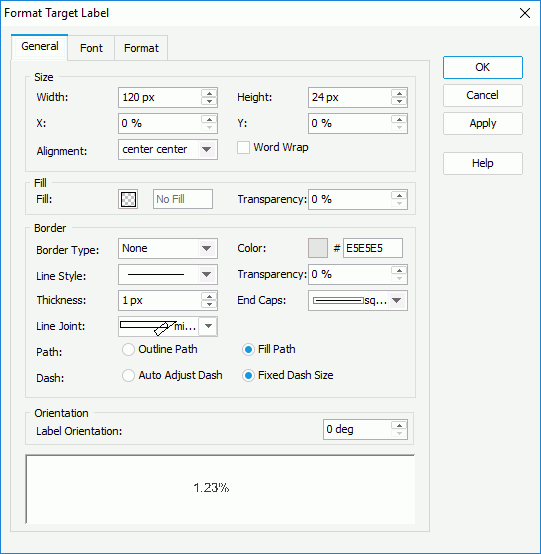
Size
Specifies the size of the labels.
Fill
Specifies the color and transparency of the labels.
Border
Specifies the properties for borders of the labels.
End Caps
Specifies the ending style of the border line.
Path
Specifies the fill pattern of the border line.
Orientation
Specifies the orientation properties of the labels.
Sample
Displays a preview sample of your selection.
Specifies properties for font of the label text.
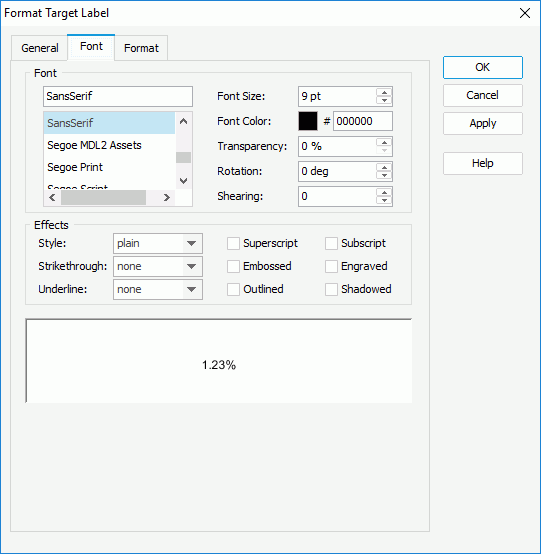
Font
Specifies the font format of text in the labels.
Effects
Specifies the special effects of text in the labels.
Sample
Displays a preview sample of your selection.
Specifies the data format of the labels.
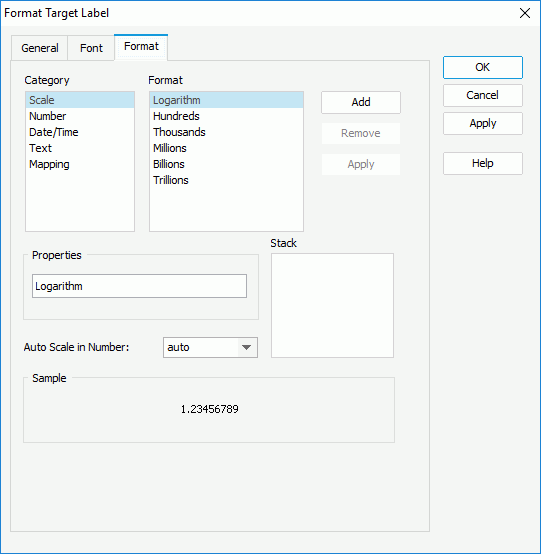
Category
Lists the category types. Select one to customize its format.
Format
Displays all the formats of the selected category. Select the required one and click Add to add it as the format of the specified category. You can add only one format for each category.
Properties
Displays the properties of the format you select. If the formats listed in the Format box cannot meet your requirement, define the format in the text field and then click Add to add it as the format of the specified category.
Auto Scale in Number
The property takes effect for the Number category. It specifies whether to automatically scale the values that fall into the two ranges:
The value "auto" means that the property setting follows that of the parent data container.
When the property is true: for the values that are to be scaled, the Format setting applies to the integer part of the values after scaled; if the specified format conflicts with the Auto Scale in Number property, for example, the values are displayed in percentage, then the Auto Scale in Number property is ignored.
Sample
Displays a preview sample of your selection.
Stack
Lists all the formats you select from different categories.
Add
Adds a format to the Stack list box.
Remove
Removes a format from the Stack list box.
Apply
Applies the specified format in the Stack list box to the labels.