 Previous Page Next Page
This dialog appears when you select *Filter and then click OK in the Web Action List dialog. It helps you to build a Filter web action to filter data of the data components in the report when the event bound with the action is triggered at runtime.
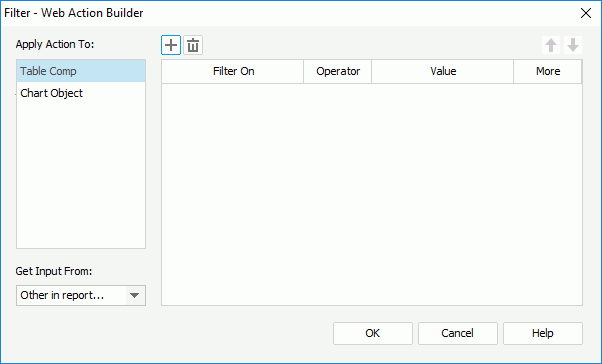
The following are details about options in the dialog:
Apply Action To
Select a data component and then specify the filter condition. You can specify filter condition for different data components.
Get Input From
Specifies where to get the object. You can select Form if you add some objects to a form. Otherwise, only the item Other in Report you can choose.

Adds a new filter condition row.

Removes the selected filter condition row.

Moves the selected filter condition row up a step.

Moves the selected filter condition row down a step.
Filter On
Specifies the field on which the filter is based. Which fields are available here depends on which object you choose in the Apply Action To box.
Operator
Specifies the operator to compose the filter expression.
Value
Specifies the value of how to filter the field. If multiple values are required, they should be separated with ",", and if "," or "\" is contained in the values, write it as "\," or "\\".
More
Specifies the relationship between the current condition row and the following row, which could be And, Or, and End.
OK
Accepts the changes and closes this dialog.
Cancel
Does not retain any changes and closes the dialog.
Help
Displays the help document about this feature.